Persona: Owners, managers & front desk
Entry: After Daily operations — or start here if collections is your main job
Exit: Admins continue to Configuration; staff can finish with FAQ
Guides for keeping members paying and re-engaging lapsed members via renewals, overdue tracking, reminders, and campaigns.
Renewals dashboard#
Purpose#
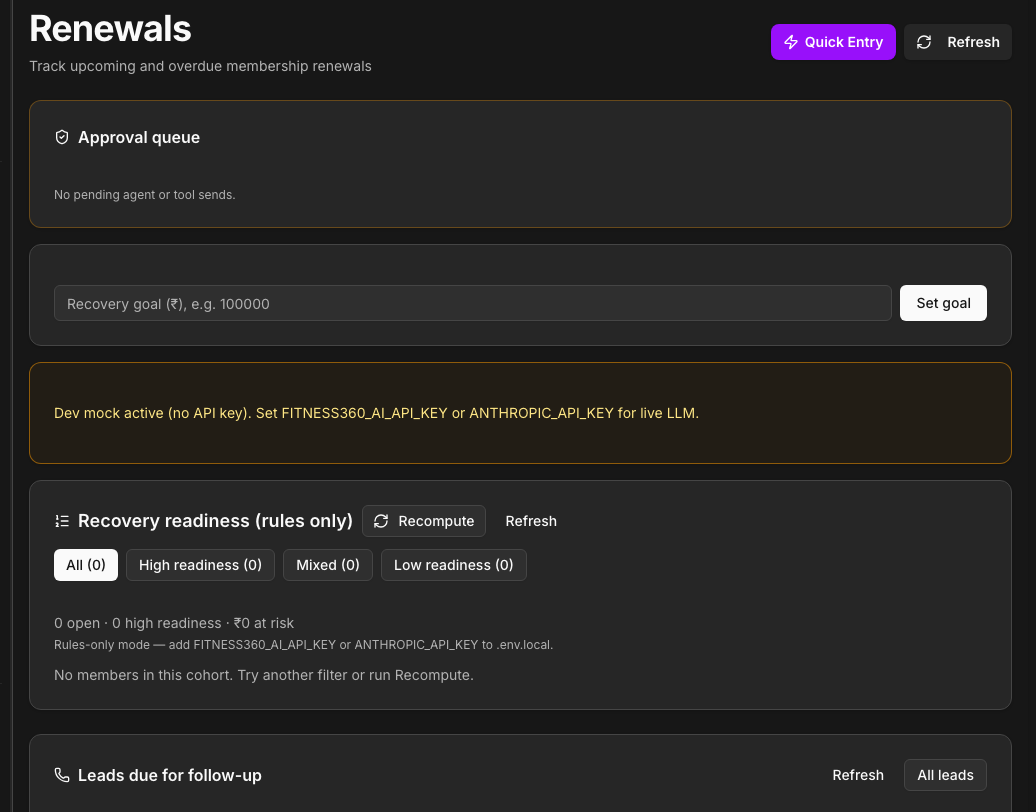
See who is due to renew, chase payments, and send bulk WhatsApp.
Who can access#
All staff with Management nav. Bulk WhatsApp may require Bulk reminders permission.
How to read the renewals view#
- Open Renewals.
- Scan members grouped by urgency (expiring soon, due today, recently expired).
- Sidebar badge shows count needing attention.
Key columns / signals:
| Signal | Action |
|---|---|
| Expiring in 7 days | Proactive renewal call or WhatsApp |
| Due today / tomorrow | Priority front-desk chase |
| Recently expired | Win-back message |
Bulk actions#
- Select members (or use segment filters).
- Send WhatsApp — uses lifecycle templates per member’s days-to-expiry.
- Use Chase panel / messaging kanban where available for pipeline tracking.
Tips#
- Contact members before expiry day — manual templates exist for 3+ days and 1 day before.
- Confirm payment recorded before marking chase complete.
Overdue tracking#
Purpose#
Track members past their renewal date who have not paid.
Grace vs expired#
| Term | Meaning |
|---|---|
| Expired | Membership end date is before today |
| Overdue | Expired (or past renewal) and payment still outstanding — tracked in Overdue Tracking |
| Grace | Short window where member may still attend despite expiry (gym-specific attendance rules) |
Resolution workflow#
- Open Overdue Tracking.
- Find member — note days overdue and last attendance.
- Record payment (auto-resolves overdue when payment creates membership).
- Or mark inactive if member stopped attending (see below).
Automatic behaviors:
- Members with no attendance for 7+ days while overdue may be marked inactive (nightly job).
- Overdue rows for long-expired members may auto-resolve after 30 days.
Quick payment from overdue#
Use Quick payment on overdue row to jump to payment entry with member pre-selected.
Reminders hub#
Purpose#
Audit reminder history and work an unpaid-members queue.
Pages#
| Section | Content |
|---|---|
| History | Past reminders sent (manual and system-initiated) |
| Unpaid queue | Members needing follow-up |
Open Reminders from Management sidebar.
Note: Some automated reminder rows are created by background jobs; actual WhatsApp delivery depends on Meta WABA connection and your deployment’s automation level.
Lifecycle automation (WhatsApp)#
Which messages send automatically#
Fitness360 uses nine lifecycle templates. Seven run on the daily automated schedule; two are mainly manual (staff sends from member list).
| Template | Timing | Automated? |
|---|---|---|
| Expiring soon (3+ days) | Several days before end | No — manual |
| 1 day before expiry | Day before end | No — manual |
| 2 days before expiry | Two days before end | Yes |
| Expiry day | On end date | Yes |
| 1 day after expiry | Win-back | Yes |
| 7 days after expiry | Follow-up | Yes |
| 15 days after expiry | Follow-up | Yes |
| 1 month after expiry | Win-back | Yes |
| 2 months after (special offer) | Comeback offer | Yes |
Paid members are skipped — if renewal payment already recorded, automated nudges for that cycle do not send.
Manual vs automated#
| Type | Trigger |
|---|---|
| Automated | Daily lifecycle schedule (when WABA connected and automation enabled for your deployment) |
| Manual | Staff clicks Send WhatsApp on member profile, renewals, or reminders |
Note (self-hosted / OSS): Some hosted deployments include a full approve→send queue. Self-hosted open-source builds may rely more on manual sends and Meta API from the app — check with your admin. Inngest-based WhatsApp workers may be disabled in OSS.
Edit templates#
Admin only: Settings → Notifications → WhatsApp lifecycle message templates.
Full guide: WhatsApp lifecycle templates.
Placeholders:
| Placeholder | Fills with |
|---|---|
{{name}} | Member first name |
{{plan}} | Plan name (internal labels like “(Default)” stripped in messages) |
{{expiryDate}} | End date formatted |
{{daysLeft}} | Days until expiry |
{{n}} | Number for “N days” phrasing |
{{daysWord}} | “day” / “days” |
{{checkInDate}} | Last check-in when relevant |
Worked example: editing the 2-days-before template#
- Settings → Notifications → WhatsApp lifecycle templates.
- Select 2 days before expiry.
- Change text, keep placeholders intact.
- Preview with sample data → Save.
- Next automated run uses new wording.
Worked example: member renewing while still active#
Member’s membership ends April 14 (active). They pay on April 10.
- New period starts April 15 (day after current end).
- They do not lose April 11–14.
- End date = start + plan duration − 1 day in IST.
Campaigns#
Purpose#
Send targeted WhatsApp offers to a segment — not individual lifecycle timing.
Segments#
| Segment | Who is included |
|---|---|
| Expiring this week | Active members with renewal in next 7 days |
| Overdue | Active or expired, renewal date in last 30 days |
| Lapsed 30d+ | Expired more than 30 days ago |
| All active | All active members |
How to run a campaign#
- Open Campaigns.
- Choose segment → Probe audience (see count and sample).
- Write or select message → Create draft.
- Review draft → Queue send.
Warning: Large campaigns count toward WhatsApp rate limits. Probe first. Members without phone numbers are excluded.
Tips#
- Use campaigns for promotions; use lifecycle templates for renewal discipline.
WA History#
Purpose#
Audit what WhatsApp messages were sent and when.
- Open WA History.
- Filter by date, member, or status.
- Use for disputes (“Did we send the 7-day reminder?”).
Daily admin digest (optional)#
When Meta WABA is configured, admins may receive a daily overdue report on WhatsApp — summary of collections needing attention.